

Features
What Pennyproof does
Six parts, each one a place you can go. The screens below use made-up statements. A small mark says which plan a part needs.
Convert and check
Drop a PDF, Excel or CSV file and get the rows as Excel or CSV. The page adds up the money in and out and compares it with the closing balance, so you see when a row is wrong.
- Convert a statementRead in your browser. The file is not uploaded.
- Scans and photosRead on your device and checked the same way. Rows the reader was unsure of are marked.
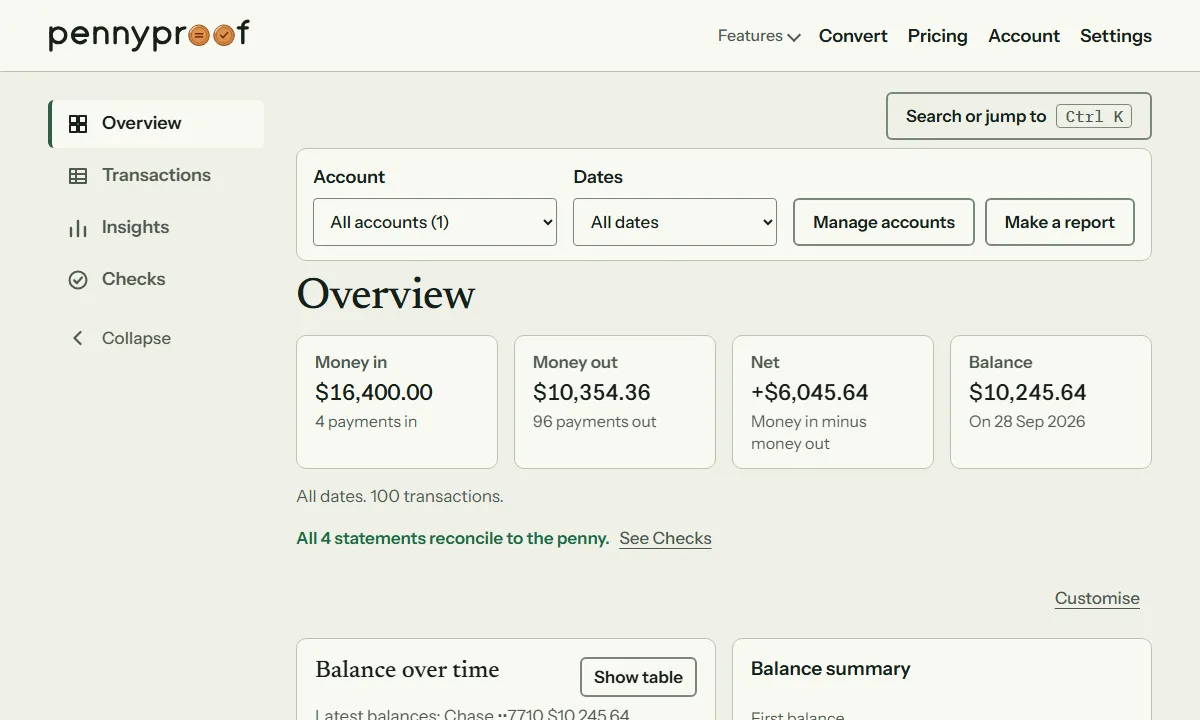
Dashboard and categories
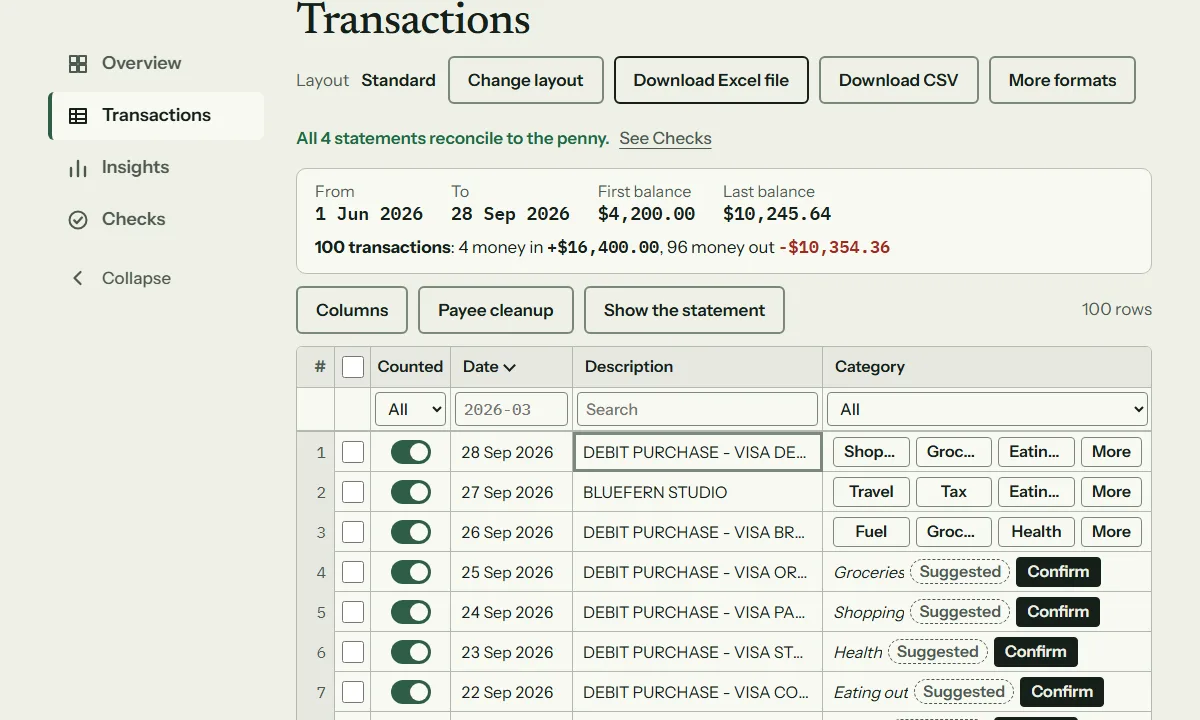
Every statement you convert is kept on your device and shows up in a dashboard with charts and a table of all rows. Rows are sorted into categories, and the ones that need your eye come first.
- DashboardCharts you can click into, and a spreadsheet-style table.
- CategoriesPick one for a shop and the same shop is sorted the same way next time.
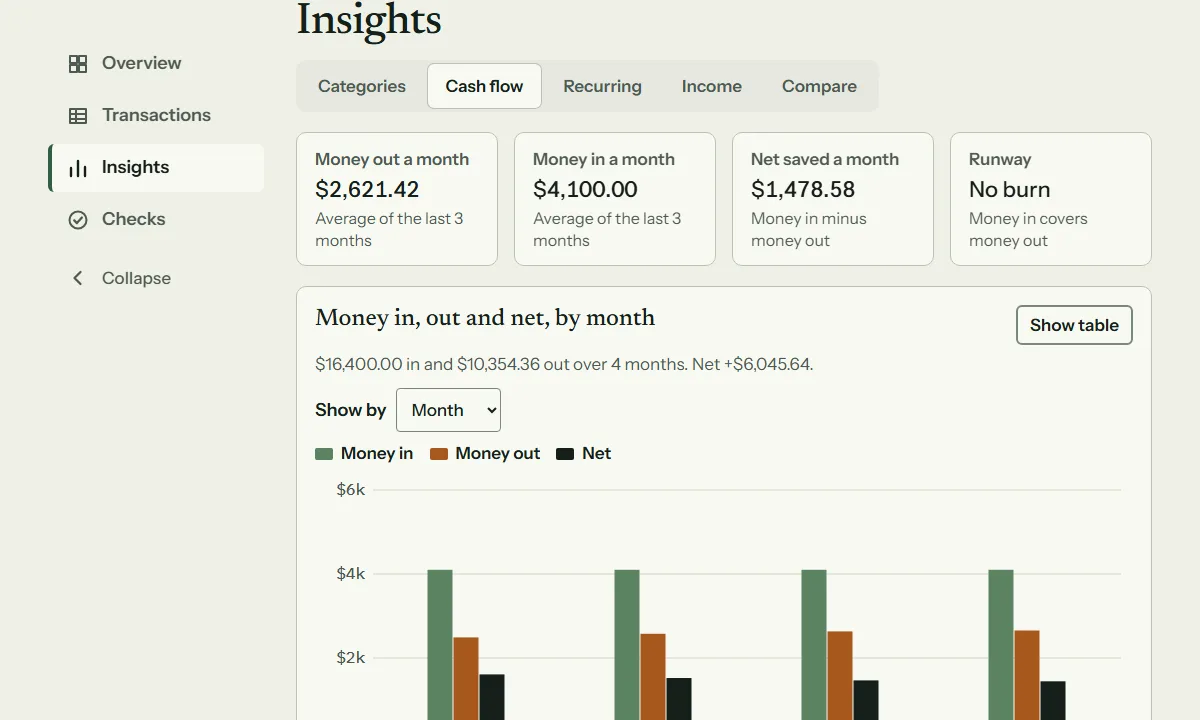
Cash flow and insights
See where money goes each month, which payments repeat, how income moves, and what the next 30 days look like if the pattern holds. It is arithmetic on your rows, not a forecast promise.
- Cash flow and insightsCash flow, repeating payments, income and month against month.
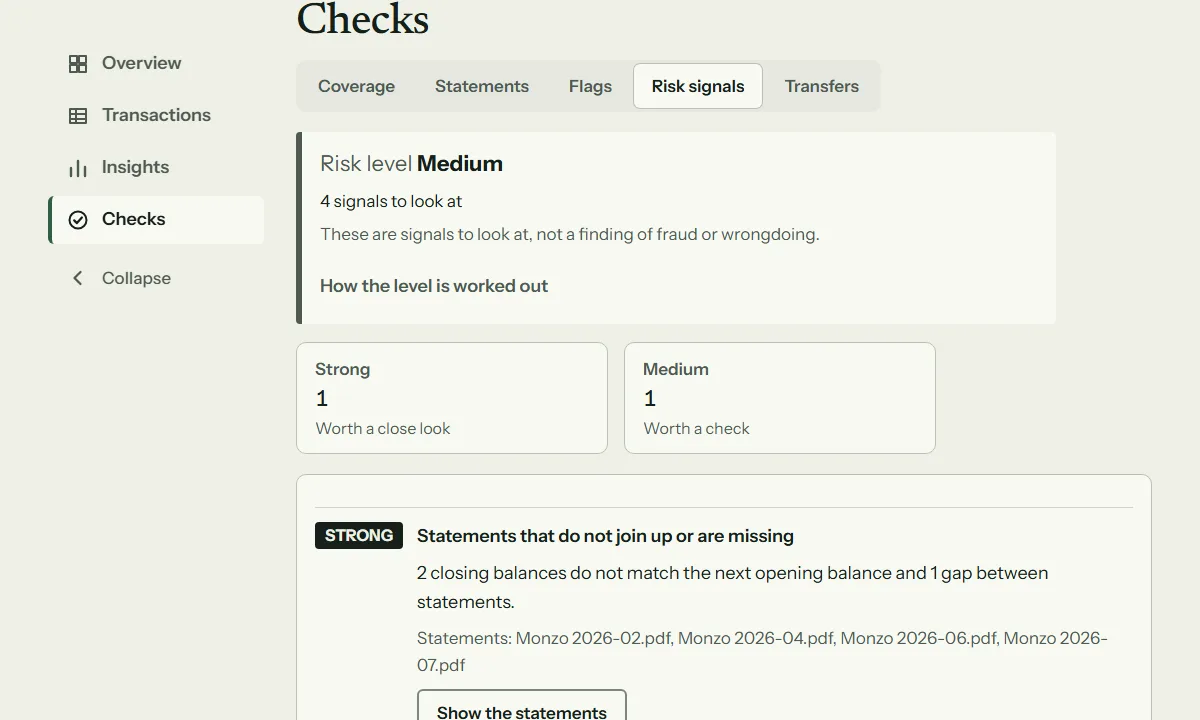
Checks and risk signals
Gaps between statements, repeated charges, unusual amounts and signals worth a second look, each with the rows behind it. A signal is a reason to look, not a finding of wrongdoing.
- Checks and risk signalsPlain sentences with the numbers and the rows they come from.
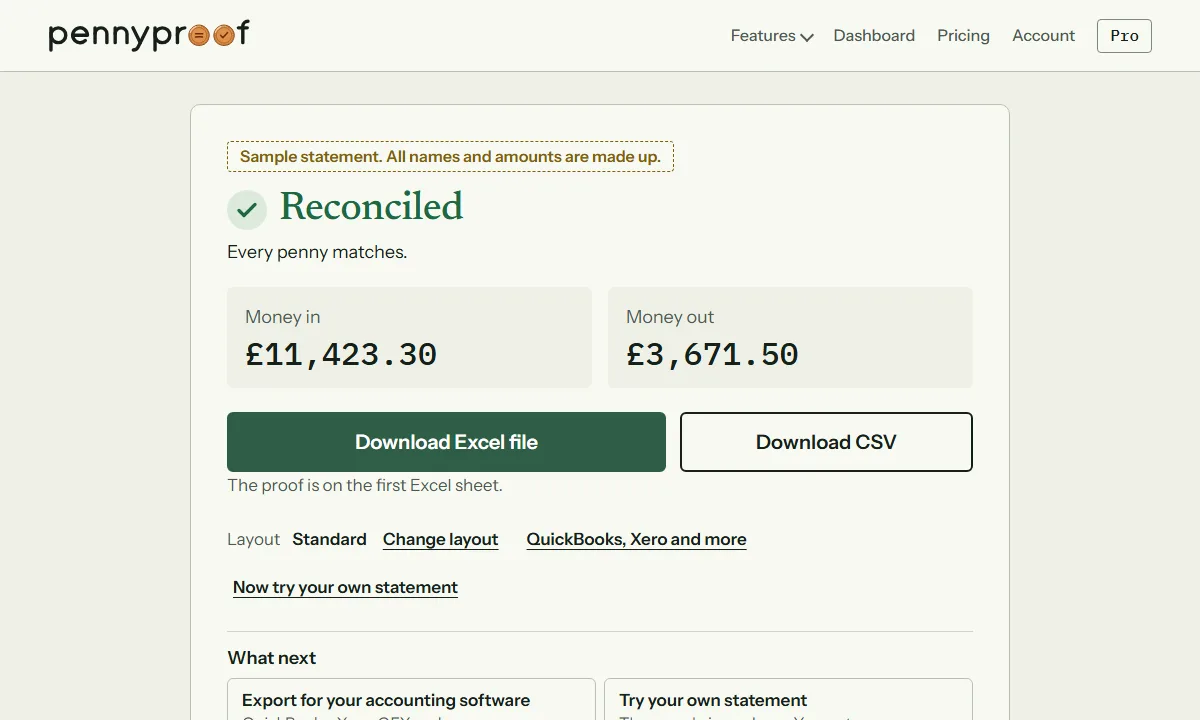
Exports and your own layouts
Excel and CSV come with every plan. Plans above add files your accounting software opens, and your own column layouts.
- Exports for QuickBooks and XeroQBO, OFX, QIF and a Xero CSV, from a result or from the dashboard.
- Your own export templatesChoose the columns and their order once, and every download uses them.
Large batches and automation
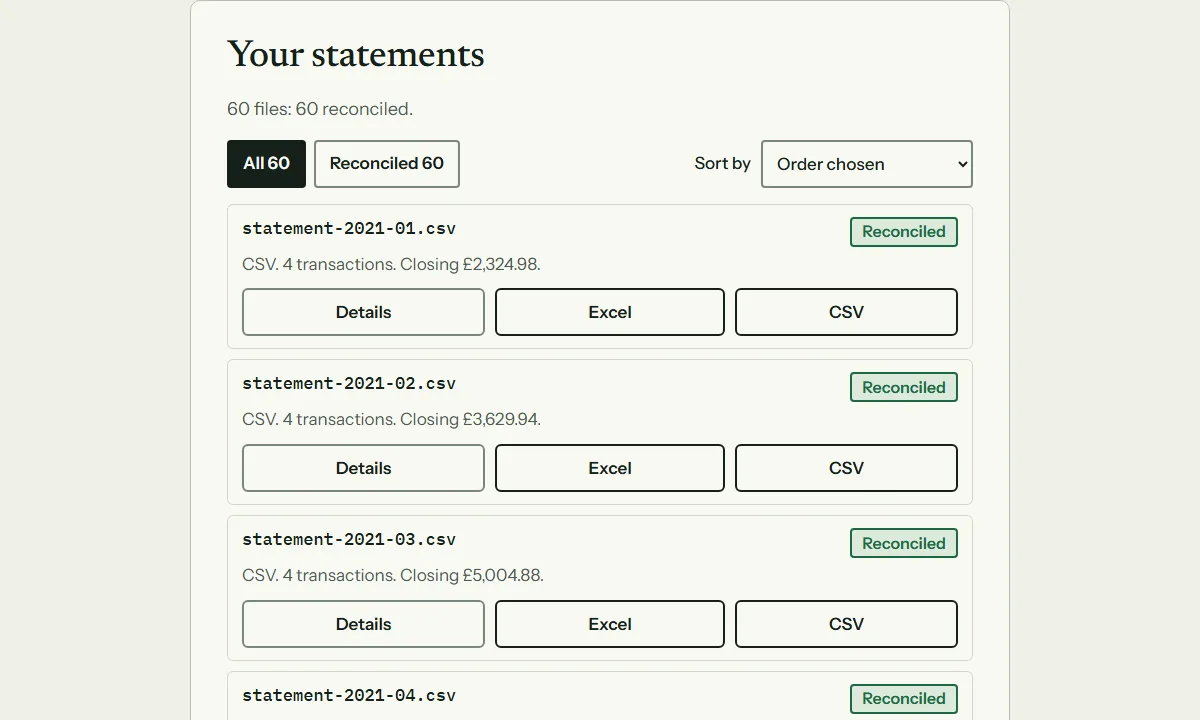
Drop a ZIP or a folder with hundreds of statements. Free and Plus take 25 files at a time. Pro and Enterprise read the rest by themselves, 25 at a time, with Pause and Stop after this batch. Pro and Enterprise can also run it from the command line.
- Large batchesResults appear as each batch finishes. A file that fails does not stop the rest.
- AutomationA command line tool and an MCP server. The files stay on your device.
By hand, with the app, with your assistant
- By handYou read every row off the page and type it in.
- With the appThe typing goes away. It reads each statement, checks it to the penny and flags the rows to look at.
- With your assistantThe checking can go away too. On Pro and Enterprise, your own assistant converts a folder, fixes the flagged rows, sorts categories, renames banks and payees and exports, on your computer. Every change is written down and can be undone, and your dashboard shows it.
Prices and what each plan includes are on the comparison table.